How to Play Dressmaker Online
Dressmaker turns a customer request into a small sewing project. This guide explains the basic loop in the browser prototype embedded on Dressmaker.lol, how each screen fits together, and how to get back into the game if it does not load.
The basic Dressmaker gameplay loop
Every commission follows the same five beats, and once you have seen them once you can predict what the next screen will ask for. The loop is short enough to repeat several times inside a single sitting, which is why the game stays approachable even when a specific order looks demanding.
- Read the commission. Note the occasion, the customer’s style, and the budget before settling on a design.
- Choose a silhouette and fabrics. Try combinations in the design stage and consider how each panel will look together.
- Lay out and cut the pattern. Arrange pieces carefully on the fabric. Cutting is a key part of the craft, so check your layout before committing.
- Sew the garment. Use the on-screen prompts and work steadily around seams. A larger screen and mouse make precise actions easier.
- Review the finished dress. The prototype shows the result of your design and sewing choices; use each commission to experiment with another fabric or shape.
Stage 1: the customer brief sets the rules
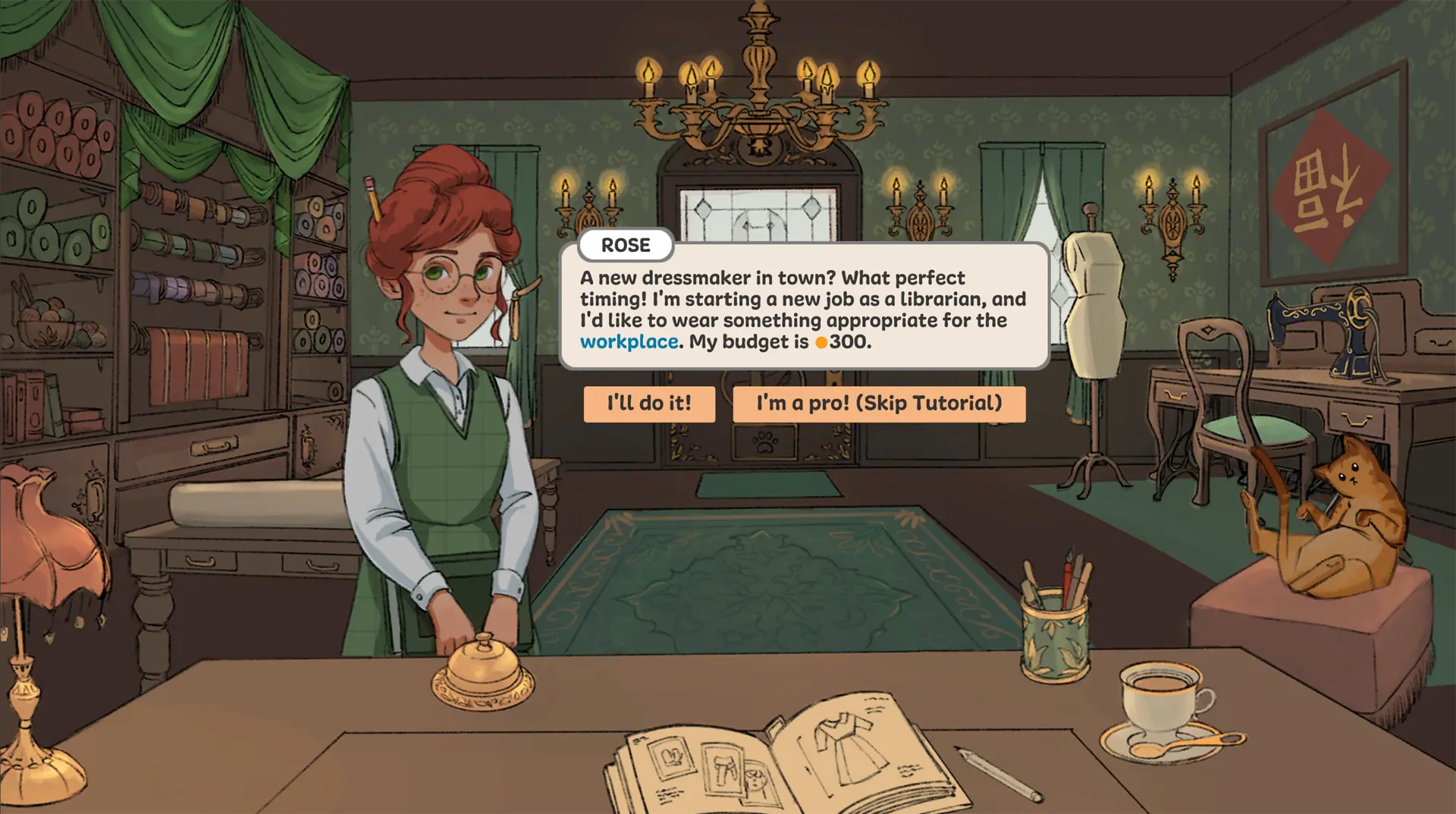
The opening screen is a conversation, not a form. Rose in the screenshot above explains that she is starting work as a librarian and wants something appropriate for the workplace, with a budget of 300. Two things are already decided for you before you touch a single pattern: the occasion, and how much you are allowed to spend.
Do not skip this screen because it looks like talking. The wording usually contains the real constraint. “Appropriate for the workplace” is a styling direction, and the budget is a hard number that limits which fabric you can afford. If a later screen asks for a quality target or a style target, the brief is where those numbers first appear.
Stage 2: the sketchbook is where you plan
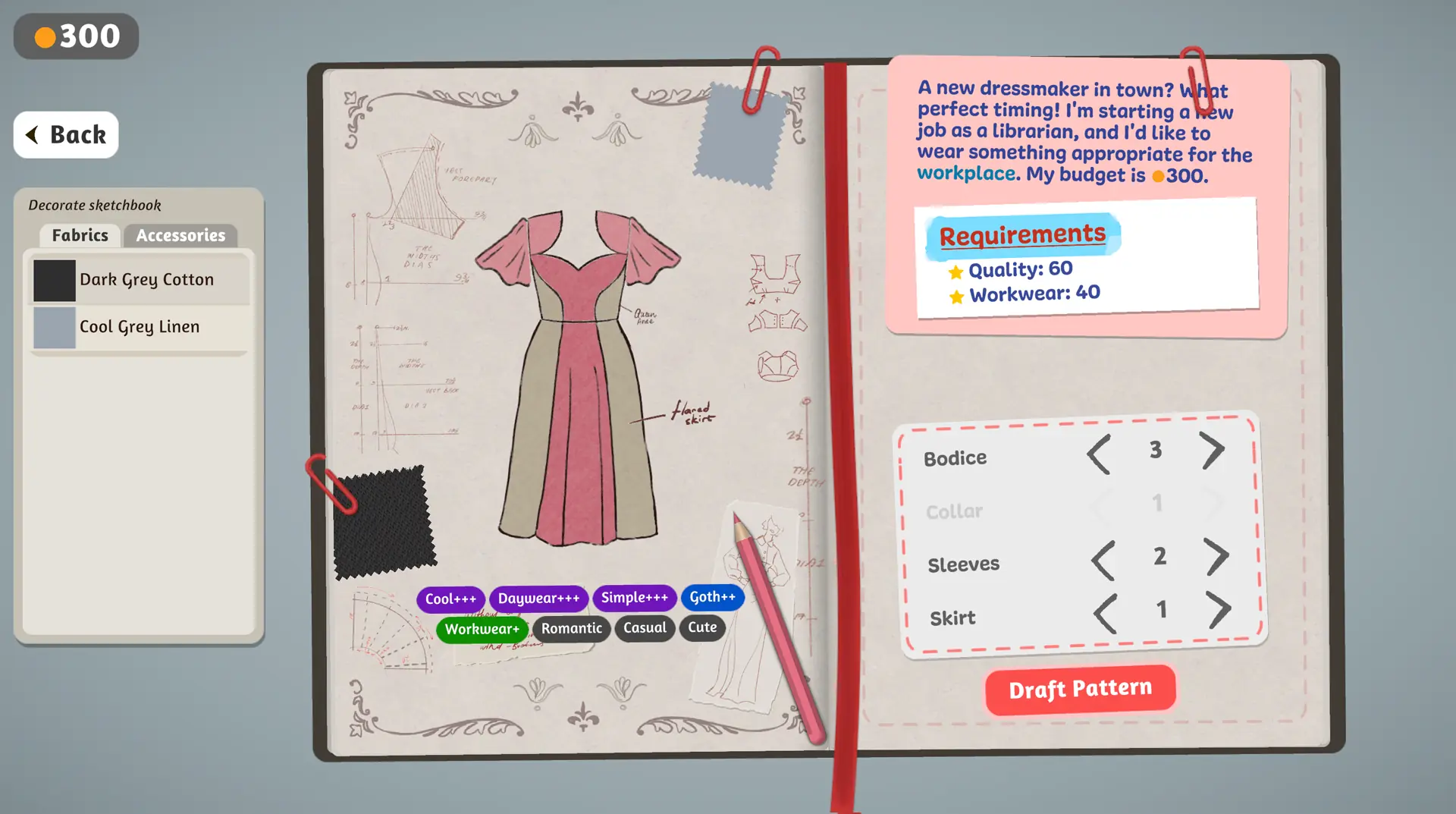
The sketchbook places three things on one screen: the customer’s request and requirements on the right, the fabric list on the left, and your growing dress drawing in the middle. In the captured state below, Rose’s requirements panel reads Quality: 60 and Workwear: 40, the fabric list offers Dark Grey Cotton and Cool Grey Linen, and the panel of arrows lets you change the Bodice, Collar, Sleeves and Skirt independently.
The row of coloured tags under the drawing — Cool, Daywear, Simple, Goth, Workwear, Romantic, Casual, Cute — is the quickest read on how the game is currently characterising your design. A green Workwear+ tag on Rose’s order is a useful confirmation that the dress is heading in the right direction. The sketchbook controls guide walks through this screen in detail.
Stage 3: cut and sew deliberately
Once you press Draft Pattern, the design you approved becomes a pattern to place on fabric. This is the part of the loop where the official store description says your choices carry through: whether your pattern is aligned to the grain or cut on bias, and how you arrange the pieces, is what ends up on the finished garment. The fabric and pattern guide covers what to check before you cut.
During sewing, the prototype gives you prompts to follow. Work in small, controlled movements and slow down when the direction changes. If an input does not respond, click inside the game frame once so it takes focus, and use a mouse on a desktop display rather than a trackpad or touchscreen.
Stage 4: read the result before you accept it
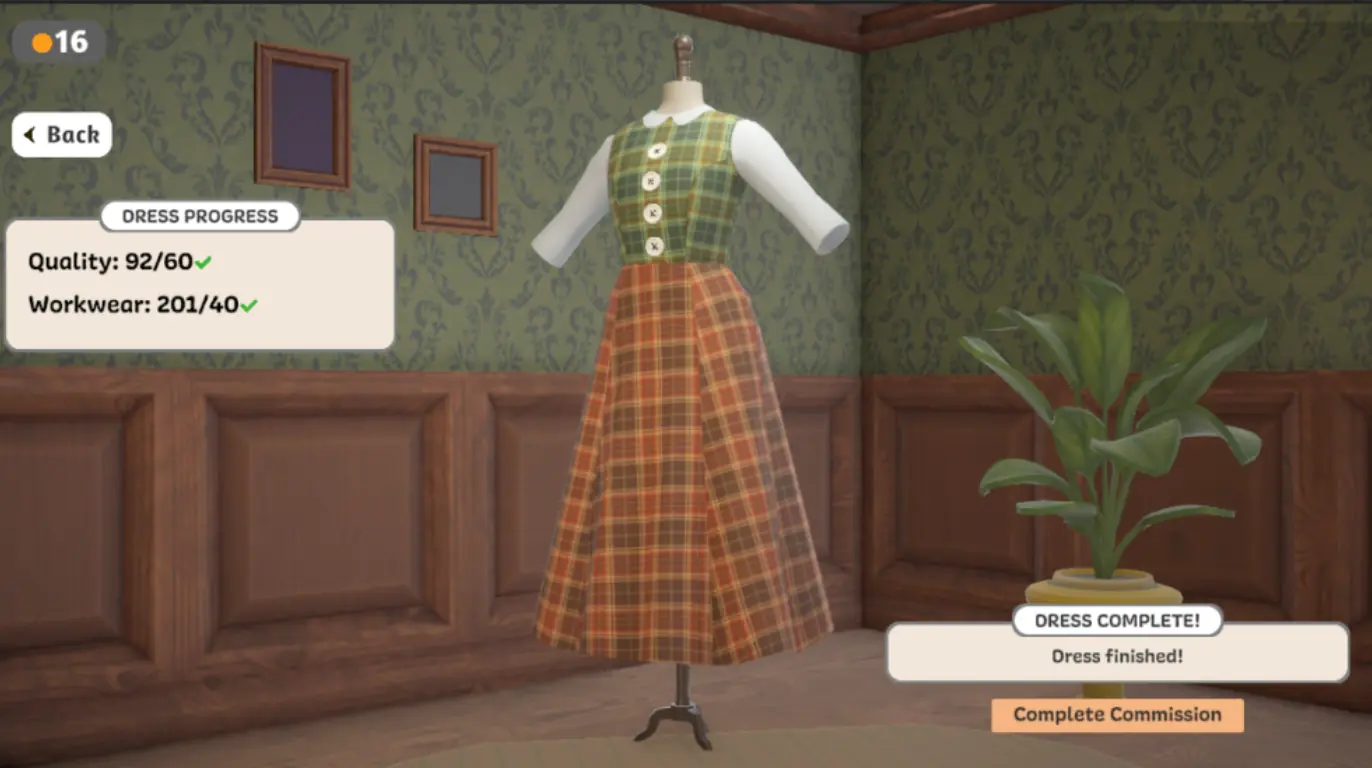
When the dress appears on the mannequin, the Dress Progress panel on the left shows the values the game computed for that garment. The finished plaid dress in the example below shows Quality: 92/60 and Workwear: 201/40, each with a green check, while the dress still waits for you to press Complete Commission. The completion button means the making step is done — it is not the same thing as saying every target was met. The quality targets guide shows a second example where a finished dress sits below its target.
Tips for your first dress
- Read the whole request before choosing a fabric or color.
- Preview the overall combination before cutting, especially when mixing prints.
- Use a desktop browser and mouse for the fine pattern and sewing interactions.
- Take your time with the sewing prompts; small, controlled movements are easier to correct.
- Write down the displayed target before you start, so you can tell later whether your change actually helped.
What the browser player actually loads
It is worth knowing what your browser is fetching, because most “the game will not load” reports come from expectations set by the wrong number. The player embedded on this site runs an HTML5 build served from a third-party host. Its first load pulls the game script plus a few megabytes of pattern, garment and accessory data, and it then streams textures and sound effects as you reach the parts of the game that need them. The much larger Unity WebGL download belongs to the older build still hosted at the same address under a different path, and to the creators’ own prototype download.
The practical consequence is that the first load should be quick on a decent connection, and that the game needs a current desktop browser with WebGL and audio enabled rather than a large amount of free memory. If the page stays blank for a long time, the cause is almost always a blocked request, a stale cached copy of the page, or a browser that cannot run the build — not a missing graphics card. The troubleshooting guide turns that into a checklist.
Browser game not loading?
If the embedded player never leaves its loading state, work down this list in order rather than reloading repeatedly.
- Wait for the loading indicator to finish before reloading the page.
- Try a current desktop version of Chrome, Edge, or Firefox.
- Disable a content blocker for this page if it prevents the external game files from loading.
- Open the hosted game directly in a new tab to find out whether the problem is the embed or the host itself.
- If the game works in a new tab but not in the embed, use the full-tab link beside the player or try the alternate browser build.
Frequently asked questions
Can I play Dressmaker in a browser?
Yes. This fan portal embeds a browser-hosted prototype you can start without installing anything. The complete release is a separate game edition on Steam.
Is the browser game the complete release?
No. The embedded player is a prototype build. The complete commercial release is a separate edition listed on Steam with a much larger set of customers, fabrics and decorations.
Can I play on a phone?
This embedded prototype is built for desktop browsers and precise mouse input. The pattern and sewing steps need a steady cursor, and the page itself recommends turning a phone sideways — but a desktop computer is the reliable way to play.
How long does the first load take?
On a normal connection it should start within seconds. The game pulls its core data first and streams textures and audio afterwards, so a slow connection can stretch the wait. If it never finishes, follow the loading checklist above.
Do I need to buy anything to play here?
No. The embedded player is free to use on this site. If you later want the full game, it is a separate purchase on Steam.
Last updated: 24 October 2026